
- Administrators and Managers of an organization can Add/Remove people from the Organization.
- Once a new member accepts an org invite they will be added to the organization.
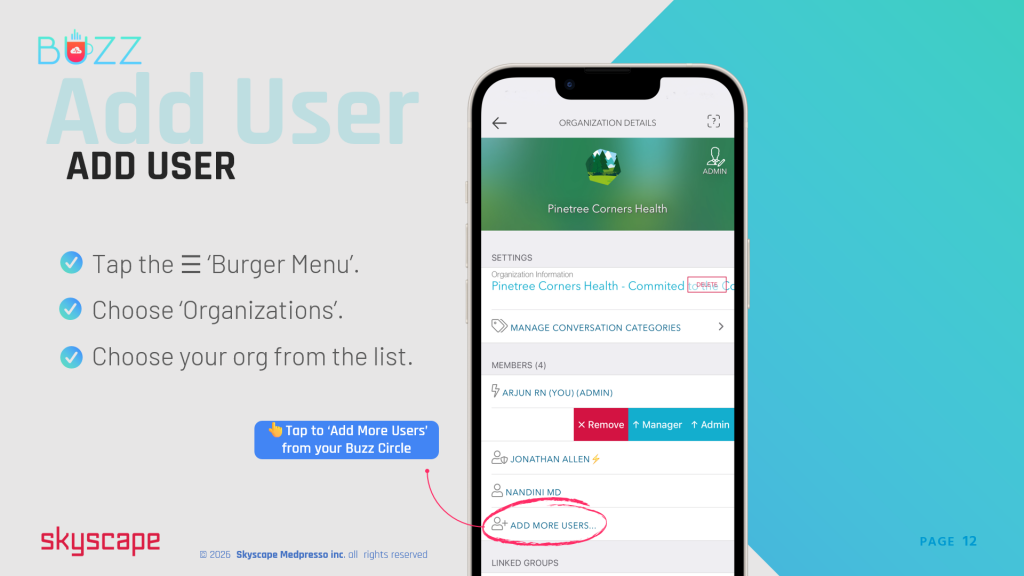
⚬ 👆Tap the ☰ ‘Burger Menu’
⚬ Choose ‘Organizations’
⚬ Select your org from the list
⚬ 👆Tap ‘Add More Users’… to add users from your Buzz Circle
Note: For users who do not already have a Buzz account – Account will be created with a temporary password. New user can complete the signup process by login using the Email ID as the user name and temporary password. User should change the password after login successfully through ‘Manage Profile’. User should create the passphrase and passphrase HINT.
⚬ Login https://buzz.skyscape.com/login
⚬ 🖱️Click the ‘Global Menu’ 
⚬ Choose ‘Organizations’
⚬ Select your org from the list
⚬ 🖱️Click ‘Manage’ next to ‘Manage Members of the Organization’
⚬ 🖱️Click the 👤+ ‘Add Users’ icon in the upper right corner
You can either add a single user by entering the details in the form or you can attach a Comma Separated file (CSV format) that contains the names, email addresses, phone numbers of the members you want to add to the organization.
ℹ️Note: For users who do not already have a Buzz account- Accounts will be created with a temporary password. Users should change their password after their login successfully through ‘Manage Profile’.